















Experience
The Experience page is where you keep the festive effects fast and considerate. Nothing here changes how a decoration looks — these settings decide how light the effects are on the page, and how they behave for visitors who want a calmer, quicker shop.
Open it from Settings › Experience in the module's left menu. The page has two cards and a single Save button: Performance and accessibility on one side, Visitor control on the other.
Behind every effect sits one shared drawing engine. All the canvas effects — snow, stars, falling gifts, confetti and the rest — are drawn on a single surface in one animation loop, rather than a stack of separate layers each running its own timer. That is what lets a dozen effects play together without weighing the page down, and it pauses on its own while the browser tab is in the background. The engine is always on; the switches below tune how far it goes.
Performance and accessibility
This card gathers the settings that make the effects kind to the page and to your visitors. Each has an ⓘ note beside it; the two that matter most are these.
- Performance budget — caps how many particles are on screen at once and scales the effects back on slower devices, so a phone or an older laptop stays smooth. We recommend leaving it on.
- Respect reduced motion — when a visitor's browser or system asks for reduced motion (an accessibility setting), the animations are minimised or stopped for that visitor. Leave it on; it costs you nothing, and it is the courteous thing to do.
The same card holds two more switches. Interaction statistics lets the module count festive interactions for the dashboard — anonymously and without cookies (Dashboard, stats and help) — and Debug mode is a diagnostic switch you leave off on a live shop.
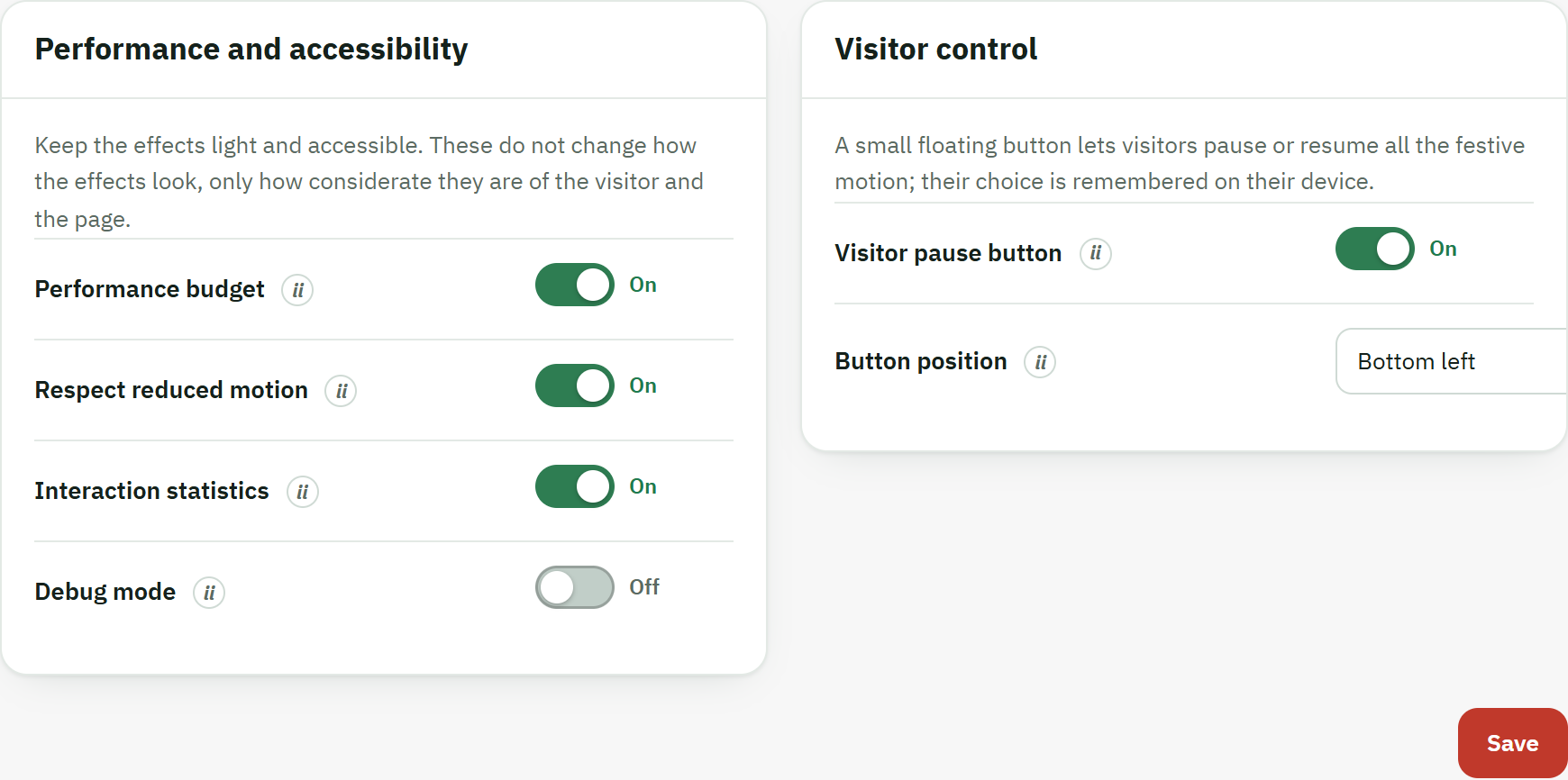
- The Performance and accessibility card, which keeps the effects light and respects a visitor's reduced-motion setting.
- A switch. Turning a setting on or off here takes effect as soon as you Save.
- The Save button, which stores both cards at once.
Visitor control
Some visitors simply prefer a still page. The Visitor control card adds a small floating button to your storefront so anyone can pause or resume the festive motion for themselves — without changing anything for everyone else.
- Visitor pause button — shows the floating button on the shop. A visitor's choice to pause or play is remembered on their own device, so it carries over as they move from page to page. It is off by default; turning it on is a considerate touch.
- Button position — which bottom corner the button sits in (bottom left by default). Pick the corner that stays clear of anything your theme already floats there, such as a chat bubble or a back-to-top arrow.

- The floating pause / play control. The visitor's choice is kept on their own device.
Dashboard, stats and help
The dashboard tells you, at a glance, whether your shop is ready for Christmas and how visitors are responding to the festive touches. And when you have a question, two Help pages live inside the module itself.
The Overview dashboard
Overview is the first page you see when you open White Christmas; it is shown in full in Install and first run. Two parts of it are worth a closer look: the readiness meter and the festive-interaction statistics.
Ready for Christmas
At the top sits a Ready for Christmas meter — a single score out of 100, with a short label that rises as your shop gets more festive. It simply checks your setup: whether the master switch is on, whether you have chosen at least one effect, whether those effects can actually show on the devices and pages you picked, and whether the respectful settings from the Experience page are on (Experience). A full score means nothing is left to do; a lower one points you at what is missing, and the setup checklist below spells each item out with a Fix link that jumps straight to the right page.
Festive interactions
The Festive interactions panel counts the little moments your effects create: a surprise gift opened, a code copied, confetti fired, the motion paused, a promo-bar click. It shows a total for the last 30 days and a small bar chart of the last 14, so you can see whether the festive features are landing.
These statistics are cookieless and anonymous. The module stores only per-day totals — how many times each thing happened — and never who did it: no visitor is identified, no profile is built and no personal data is kept. You turn the counting on or off with the Interaction statistics switch on the Experience page (Experience); until your effects are live on the storefront, the panel simply says there is nothing to show yet.
Help inside the module
The Help group in the left menu holds two pages you never have to leave the back office to use.
Documentation
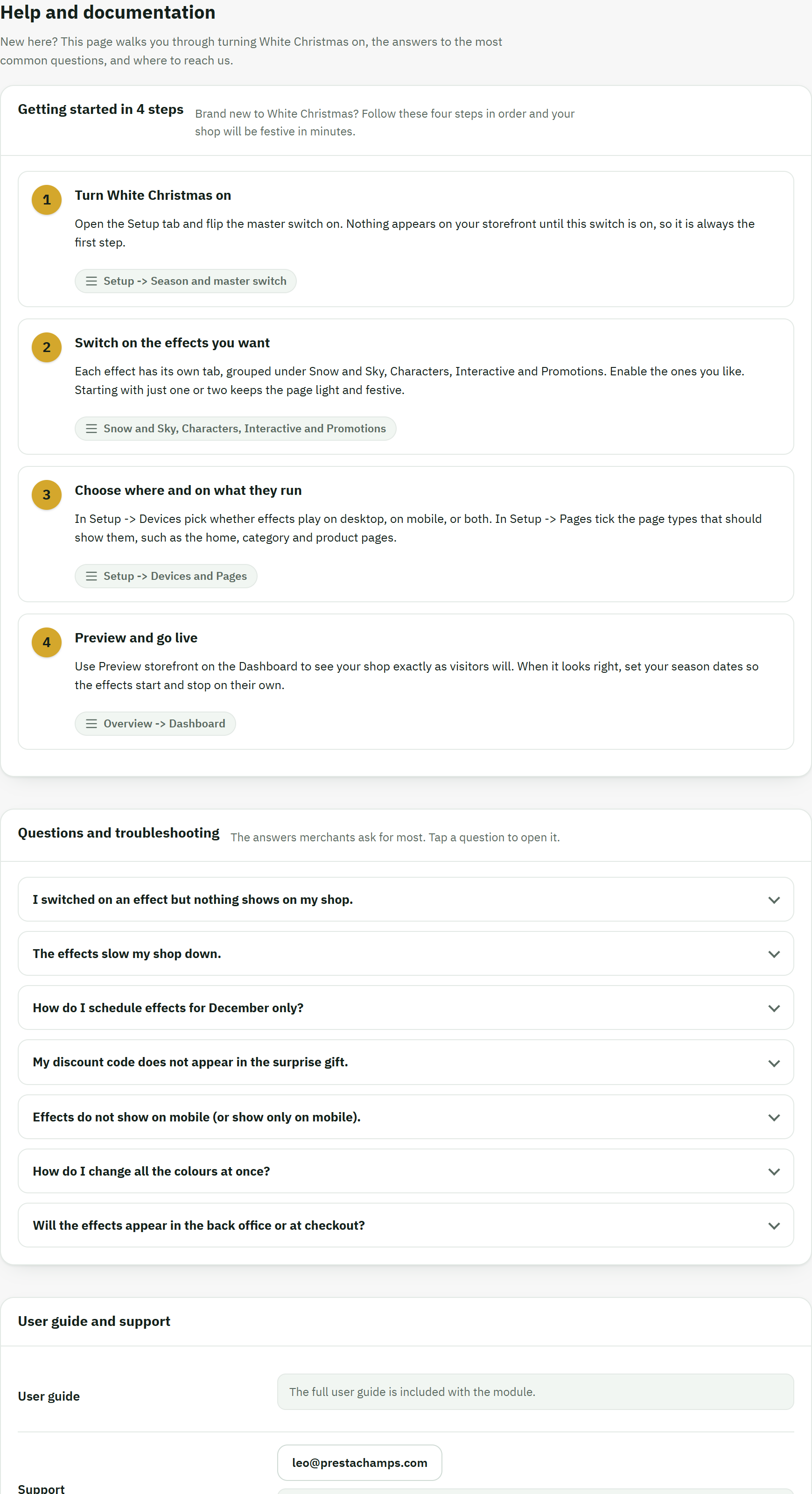
Open Help › Documentation for a self-contained help page: a Getting started in 4 steps path that names the exact tab for each step, a Questions and troubleshooting list you can open one question at a time, and a User guide and support block with a button to this guide, your support email and the module's website. It needs no internet connection — everything is shipped inside the module.
Our modules
Open Help › Our modules to see the other modules made by the team behind this one. Each card shows what the module does, the PrestaShop versions it supports, and whether your shop already has it: an Installed badge — with an Open settings link when the module is enabled — or a See on Addons button otherwise. Like the Documentation page, it loads nothing from the internet and sends nothing away; the details travel inside the module.
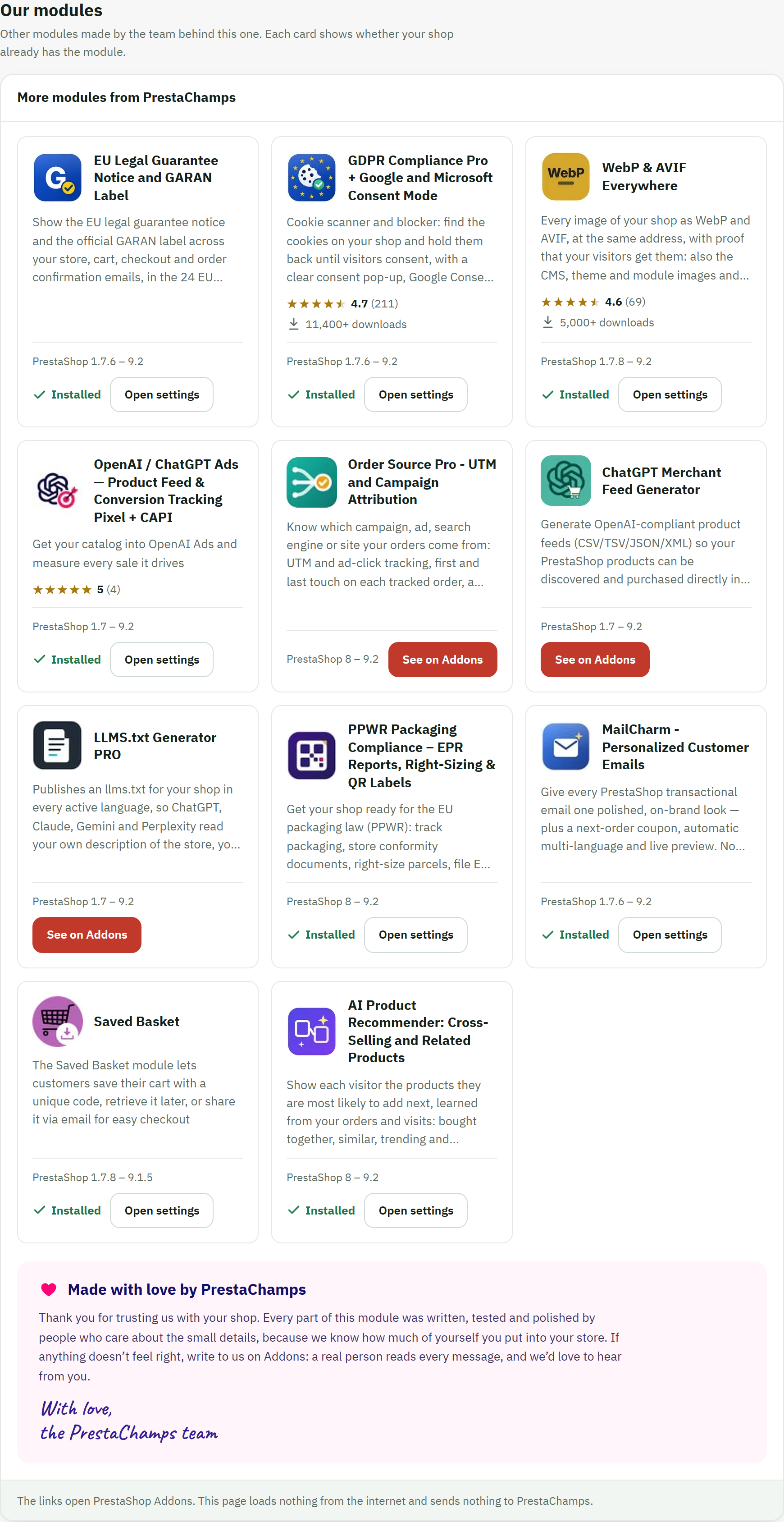
- A module card, showing whether your shop has it — here, an Installed state.
- The team's signed note, Made with love by PrestaChamps.