

















Interactive
The Interactive group adds the playful touches a visitor feels as they move around your shop: a sparkle that follows the pointer, gift boxes drifting down the page, and a burst of confetti at the moment someone adds a product to the cart. Each one has its own on/off switch and a live preview, so you can tune it before your visitors see it.
These three effects are purely decorative — they sit on top of your theme and never touch your catalogue, prices or cart. They share the same drawing engine as the rest of the module, so turning one on adds very little weight, and they obey the same page, device and reduced-motion rules you set elsewhere (Setup and Experience). As always, the master switch must be on for any of them to appear.
Cursor trail
The cursor trail leaves a trail of festive shapes that follows the mouse pointer — a small, tasteful flourish on desktop as a visitor browses. It has no screenshot of its own in this guide; the easiest way to see it is the live preview on its page, which invites you to Move your mouse here.
Open the Cursor trail section and turn on Enable cursor trail. Four controls shape how it looks:
- Shape — the shape left behind: sparkles, stars, snowflakes or hearts.
- Colour — a CSS colour for the trail, for example
#FFD700. - Length — how many shapes follow the pointer, from 1 to 50.
- Shape size — the size of each shape in pixels, from 1 to 30.
A shorter trail with a soft colour reads as elegant; a longer, brighter one feels more playful. When the page looks right, click Save changes.
Falling gifts
Falling gifts are gift boxes that drift down the page, like the snow but wrapped and ribboned. If you let them, shoppers can pop them for a moment of fun. The settings are split into two cards — Falling gifts for how they behave, and Appearance for how they look.
In the first card, turn on Enable falling gifts, then set the behaviour:
- How many — the number of gifts on screen at once, from 1 to 100.
- Fall speed — how fast the gifts fall.
- Movement — the path the gifts take as they fall.
- Click to pop — let shoppers click a gift to make it burst.
- Spin — let the gifts rotate as they fall.
The Appearance card sets their size, style and colours: a Size (small, medium, large or a mix), a Style (wrapped, ribbons, 3D, or a mix), and a Colour set — a ready-made palette, or Brand to use Brand colour 1 and Brand colour 2, which let you match the gifts to your own two shop colours. Click Save changes to apply.
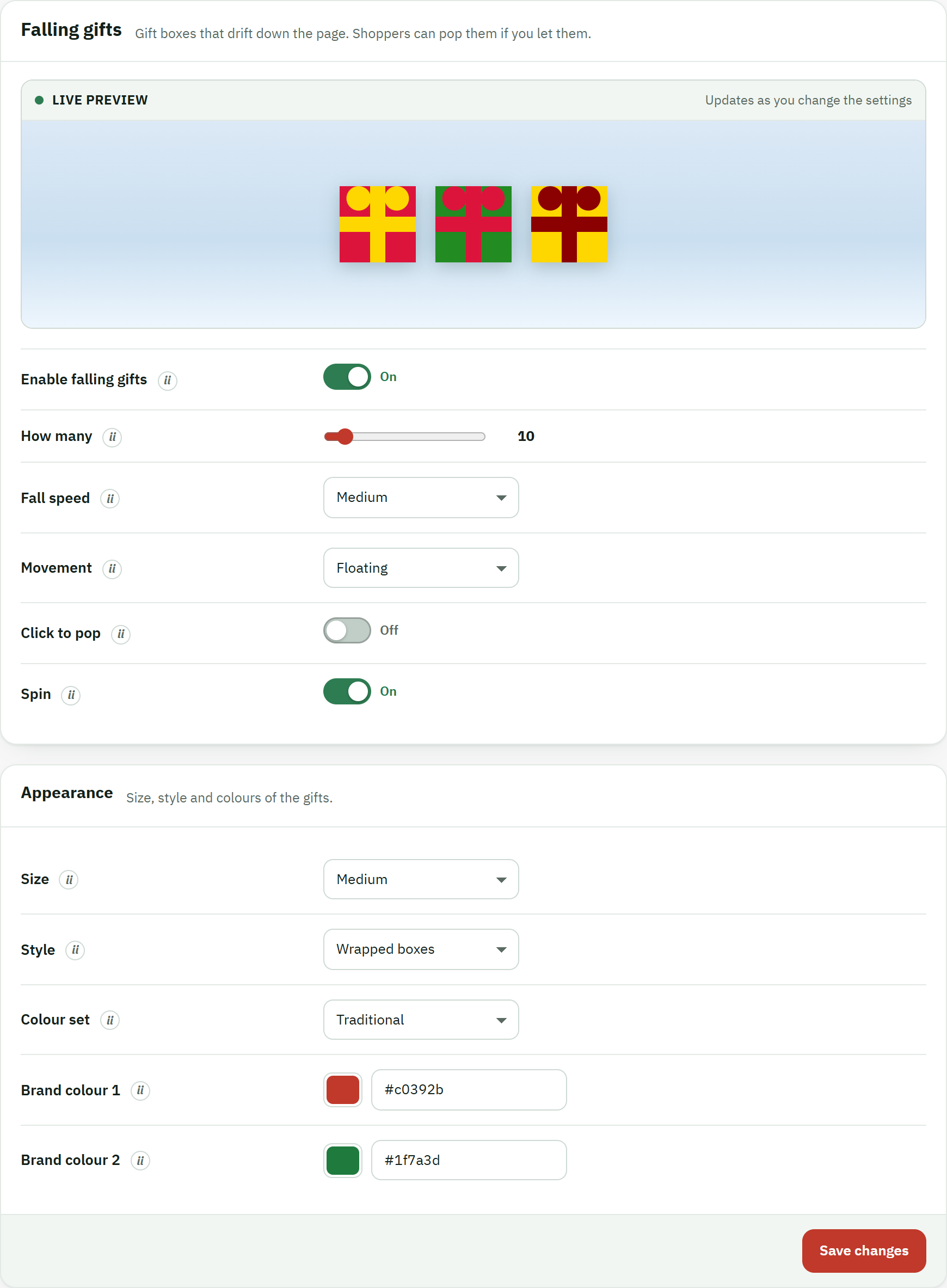
- The Enable falling gifts switch — the on/off control for the whole effect.
- The Save changes button, which stores the behaviour and appearance settings together.
Confetti burst
The Confetti burst is the one interactive effect tied to a shopping action rather than to browsing: it is a quick confetti burst that celebrates adding to cart and placing an order. That is delight right where it counts — a small cheer at the exact moment a visitor decides to buy.
Open the Confetti burst section and turn on Enable confetti burst, then choose when it fires and how it looks:
- Turn on When adding to cart to burst confetti when a product is added to the cart.
- Turn on On order confirmation to burst confetti again on the order-confirmation page, at the end of a successful purchase.
- Set the Intensity — how much confetti each burst throws: low, medium or high.
- Pick the confetti Colours, then click Save changes.
The preview invites you to Click to preview the burst, so you can judge the intensity and colours without leaving the back office.
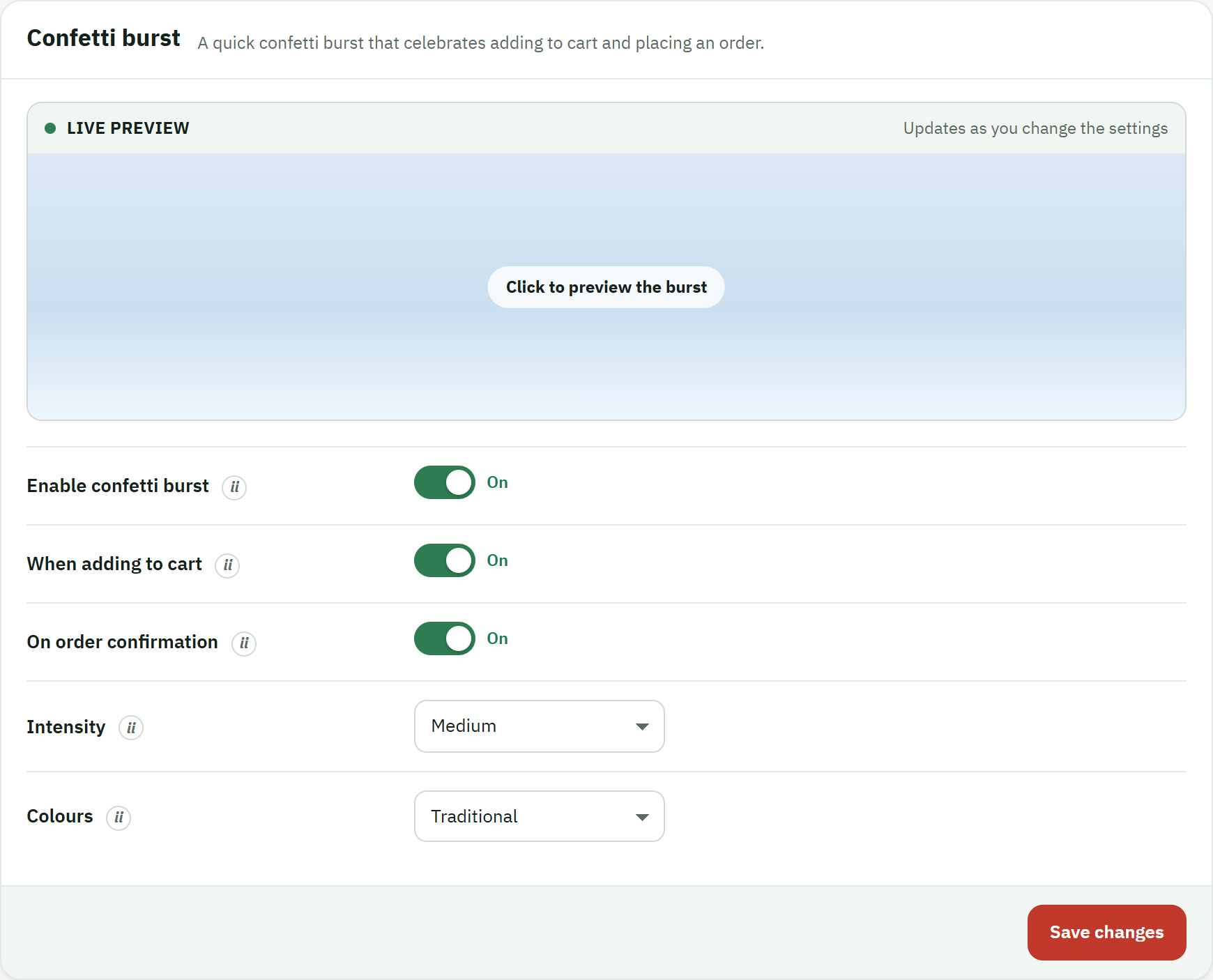
- The section title, Confetti burst, with a one-line description of what it does.
- The Enable confetti burst switch.
- The Save changes button.
On the storefront, the burst fires over the page without interrupting anything: the product still goes into the basket exactly as it would normally, and the confetti clears on its own.
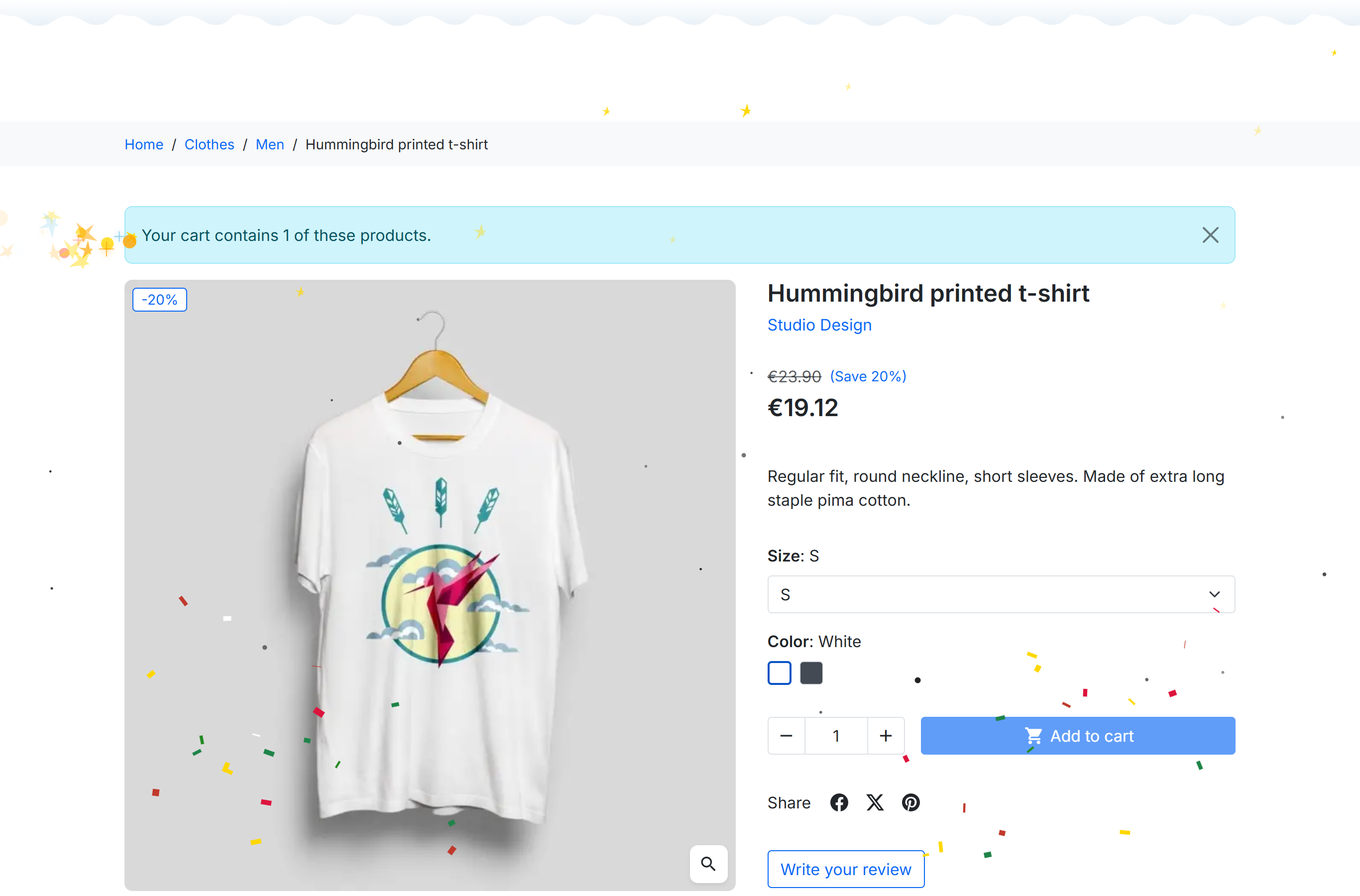
- The confetti burst, firing the instant the product is added to the cart.