

















Setup
Setup is the one page that decides how White Christmas looks and when and where it runs: the master switch that turns everything on, a season schedule that makes the shop festive between two dates and switches itself off again, a palette that recolours every effect at once, the pages the effects may appear on, and a device-by-device matrix. Open it from Settings › Setup.
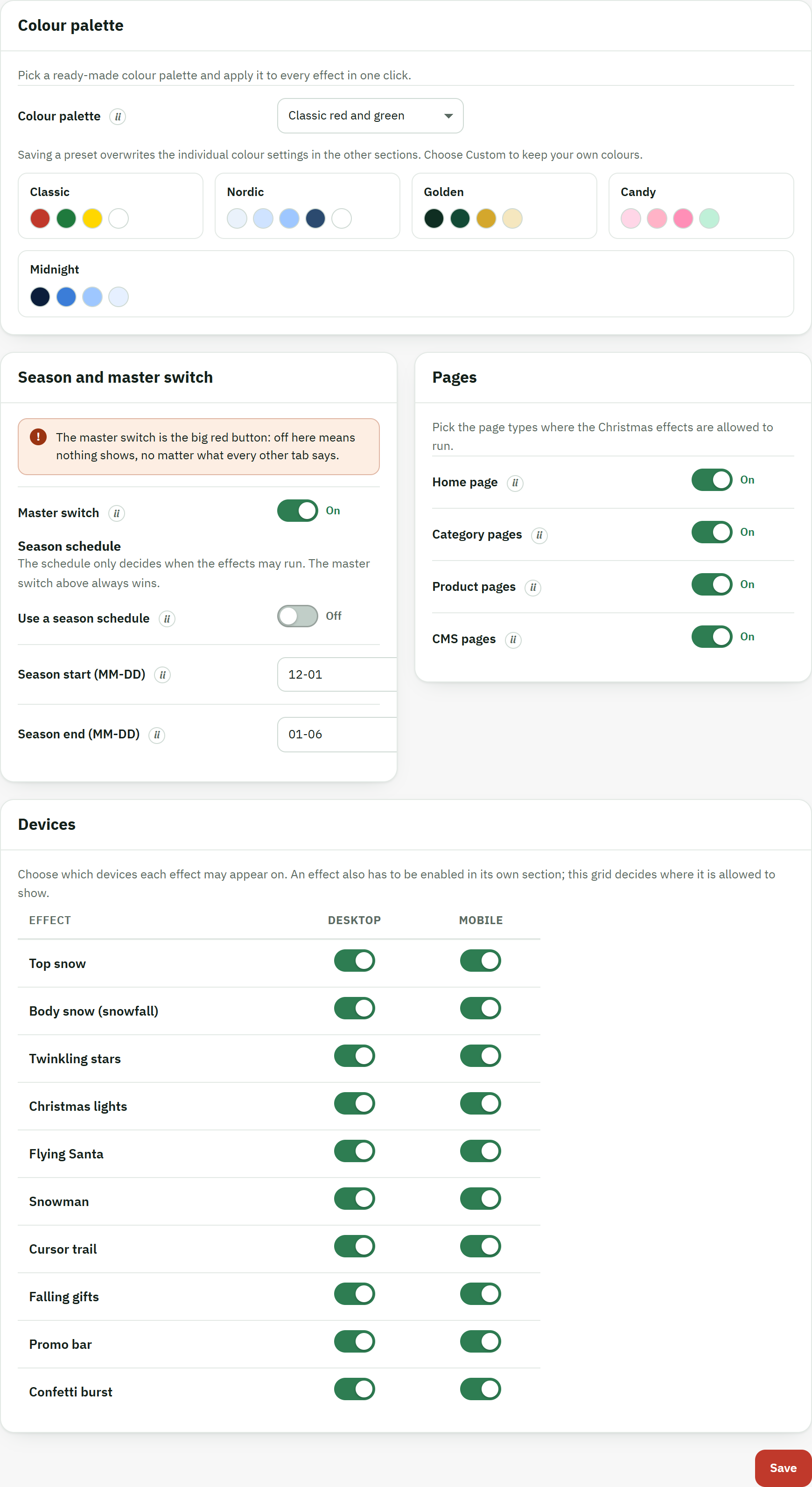
- The palette previews — a row of colour swatches for each preset, so you can see a scheme before you choose it.
- The Master switch, the single on/off for the whole module.
- The Season schedule sub-heading, where you set the start and end dates.
- The Devices matrix — a Desktop and a Mobile toggle for every effect.
- The Save button, which stores the whole page at once.
The master switch
The Master switch, under Season and master switch, is the single on/off for the whole module. When it is off, nothing runs on your storefront, whatever every other section says. When it is on, each effect still follows its own settings, the chosen pages and devices, and the season schedule below. Think of it as the big red button: leave it on through the season and let the schedule do the rest.
The season schedule
The season schedule makes your shop festive between two dates and turns it off again by itself. It is purely date-based, so you set it once and forget it. Switch on Use a season schedule and give it a start and an end day; outside that window the effects stay off, even with the master switch on. Leave the dates empty to run all year round.
- Under Season and master switch, turn Use a season schedule on.
- In Season start (MM-DD), type the first day as month-day, for example
12-01. - In Season end (MM-DD), type the last day, for example
01-06. An end earlier than the start simply wraps across New Year. - Click Save. The effects now appear and disappear on their own, year after year.
Palette presets
A Colour palette recolours every effect in one move — snow, stars, lights, Santa's trail, gifts, confetti and the promo bar all take the new scheme together, so the whole shop stays coherent. Pick one of the ready-made presets — Classic, Nordic, Golden, Candy or Midnight — or stay on Custom to keep the colours you set by hand.
- At the top of Setup, open the Colour palette list and pick a preset. The swatches beneath it show what each one looks like.
- Click Save. Every effect is recoloured to match.
Pages and devices
Two more controls decide where the effects run. Under Pages, tick the page types they are allowed to appear on — Home page, Category pages, Product pages and CMS pages such as About us or Delivery. If no page is ticked, the effects have nowhere to show.
Under Devices, the matrix gives every effect a Desktop and a Mobile toggle. An effect appears on a device only when it is switched on in its own section and ticked here, so you can keep a heavier effect on desktop and leave it off on phones. An effect that is on but has neither device ticked shows nowhere — the dashboard warns you about that (Install and first run).